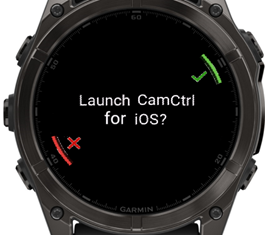
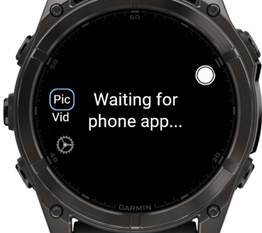
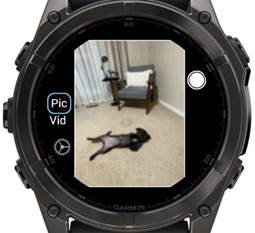
Welcome! The camera control app helps you get your framing right for your photos. Use your watch to preview photos, position everyone perfectly, and trigger the camera remotely.
📱 Start the camera app on your phone → ⌚ Launch the watch app → 📸 Take perfect photos!
Generally, it's easiest to start the camera app on your phone which will then give you the option to launch the watch app from the phone. On the watch, choose the launch option by pressing start.
You can configure the picture/video settings from the phone and save the final framing and shutter for the watch view, but you can also control most settings from the watch.
In the upper left corner, the camera app has the watch settings/status icon. A pulsing red light indicates no communication with the watch. Press the icon to open the watch configuration menu.
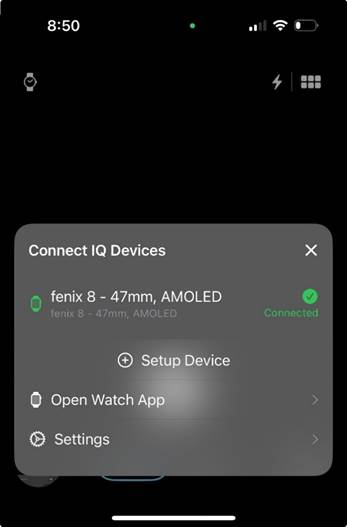
This menu allows you to select a watch and pair it. The pair process opens the Garmin Connect app and grants access to communicate with the watch. Use "Open Watch App" to launch the app on the watch (if installed).
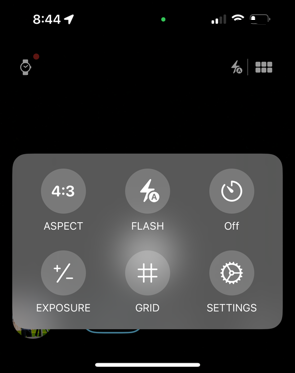
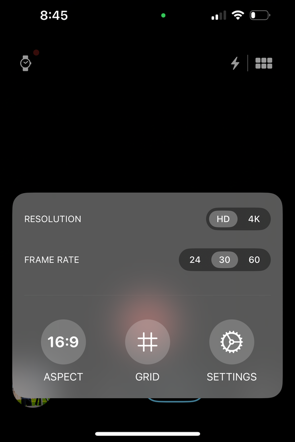
Access settings via the grid icon in the upper right. The icon to the left is quick access to flash mode.
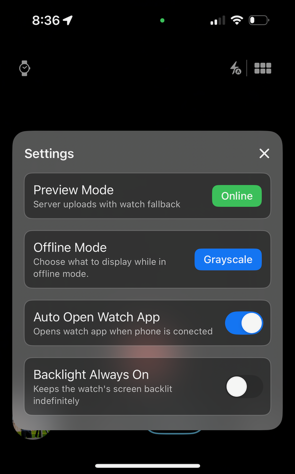
The watch shows online/color preview or black & white offline preview:
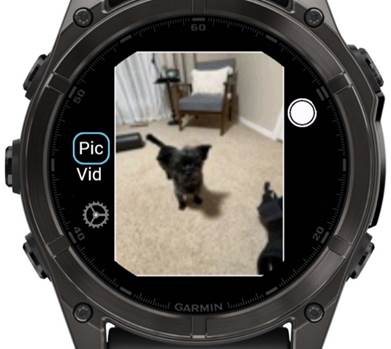
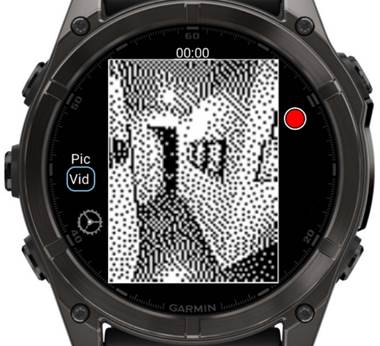
The preview screen shows a lower resolution version for framing (~1Hz on Fenix8, not video framerate). Once everything is positioned, press the start button to capture a picture or start video recording.
The settings button opens the main menu where you can toggle modes and access Camera and Watch menus.
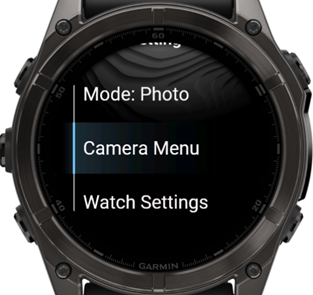
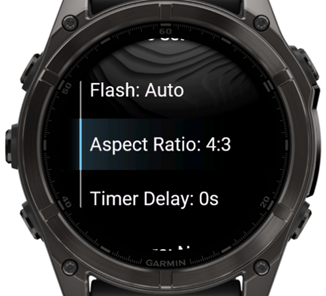
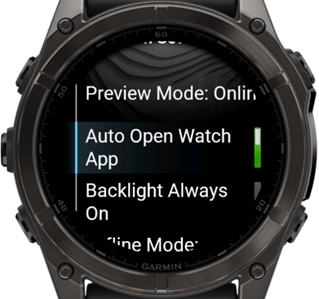
When framing is perfect, take your picture! Press the Start button, or on touchscreen watches, touch the onscreen shutter button.
In timer mode, the countdown starts. The watch screen flashes when the picture is taken. In online mode, a slightly higher detail preview downloads to the watch, allowing you to:
Need Help?
Contact support: strafe.2024+help@gmail.com